Touch screen (phone and tablet)
- Throttle: the slider on one side. Slide it up to accelerate and all the way down to STOP. It stays where you leave it, so you do not need to hold it. There is no reverse.
- Steering ring: drag inside the ring to turn the nose left, right, up and down. Ships fly in full 3D, with inertia.
- Look around: drag one finger on an empty part of the screen to orbit the camera. Release it, or steer, and the camera returns behind the ship.
- AFTERBURNER: double-tap and hold the steering ring for a few seconds of extra thrust. Release early to save charge. It needs the throttle above STOP and does not work in Cruise.
- CRUISE: tap it for fast travel; tap again to drop back to your slider speed. Firing or a hard collision ends Cruise, and it needs a short cooldown before the next use.
- Select a target: tap a drone, ship, asteroid, station or portal in the flight view, or pick it in RADAR. The brackets show its distance.
- CANNON and MISSILE: hold the cannon button to fire. The missile button launches guided ordnance at a locked target.
- RECOVER: appears near debris and broken asteroids. The droid scans the wreck, then you take what you want.
- DOCK and JUMP: select a station or a portal, fly close and press the button. In RADAR, the FLY button flies you there on autopilot.
- MAP: the region map, with every route and region level.
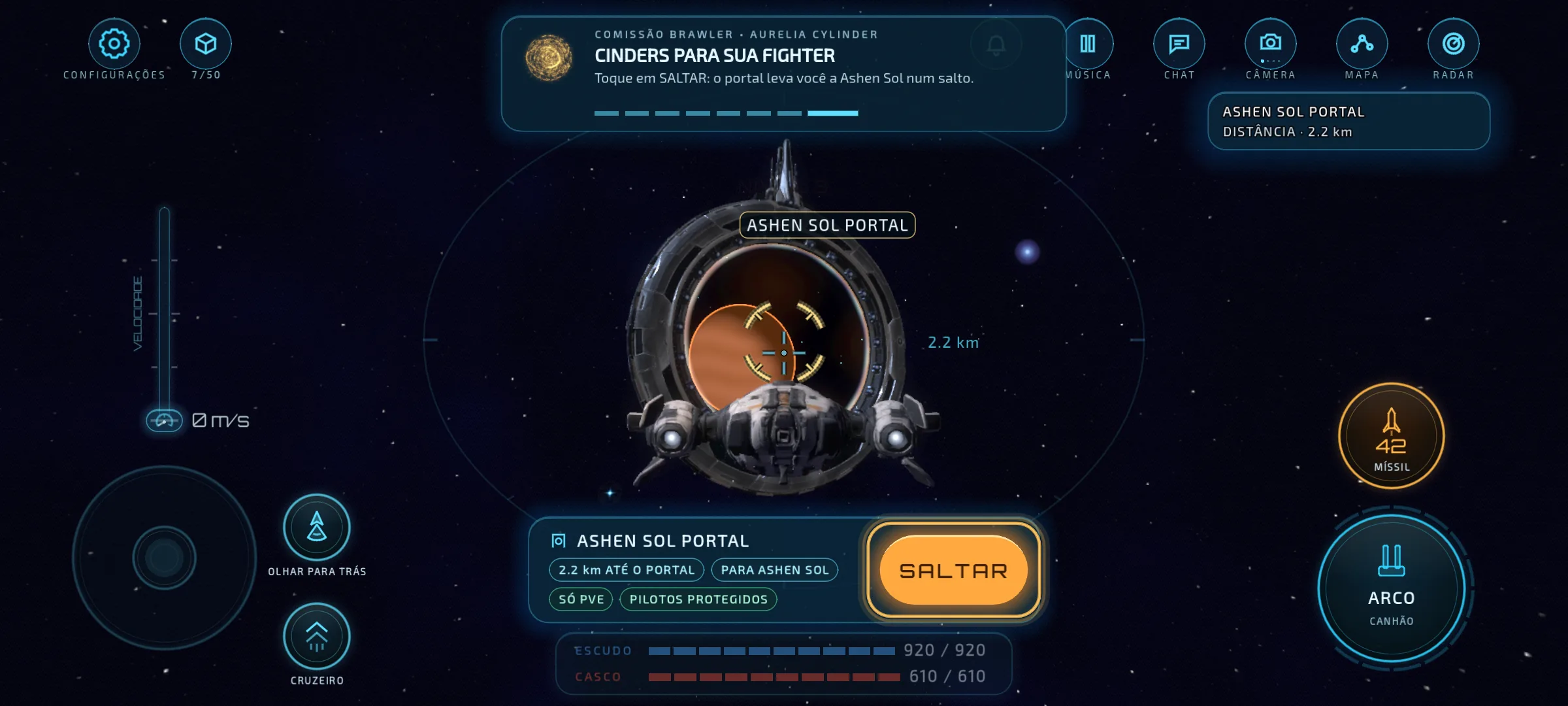
In Settings you can choose which parts of the flight interface stay on screen, and the FREE VIEW option hides it for clean screenshots.
Mac and Windows (keyboard and mouse)
On Mac and Windows the mouse aims the guns and steers the ship: the cursor is the cannon aim. The keyboard handles speed, turning and every action. Left-handed pilots can switch the keys to I J K L (or the arrow keys) and swap the mouse buttons in Settings. On Windows, F11 or Alt+Enter switches full screen on and off.
| Action | Key |
|---|---|
| Mouse buttons | LEFT CANNON · RIGHT MISSILE |
| Aim the guns and steer | mouse |
| Speed | W / S |
| Turn left / right | A / D |
| Roll | Q / E |
| Afterburner (hold) | Space |
| Full stop | X |
| Cruise | C |
| Nearest drone or pilot (again: next) | Tab |
| Clear target | ⌫ |
| Autopilot to target / cancel | G |
| Dock / jump / launch | F |
| Map | M |
| Radar | R |
| Other cannon | Z |
| Camera view | V |
| Look back (hold) | B |
| Look around | middle button + drag |
| Cargo | I |
| Contracts | J |
| Chat | T |
| Camera zoom | = / − |
| Screenshot | P |
| Close window / settings | Esc |
Any key can be changed in desktop_controls.cfg, in the game's data folder.
Ship, career and region figures are generated from the game’s own data files. Numbers can change with game updates.